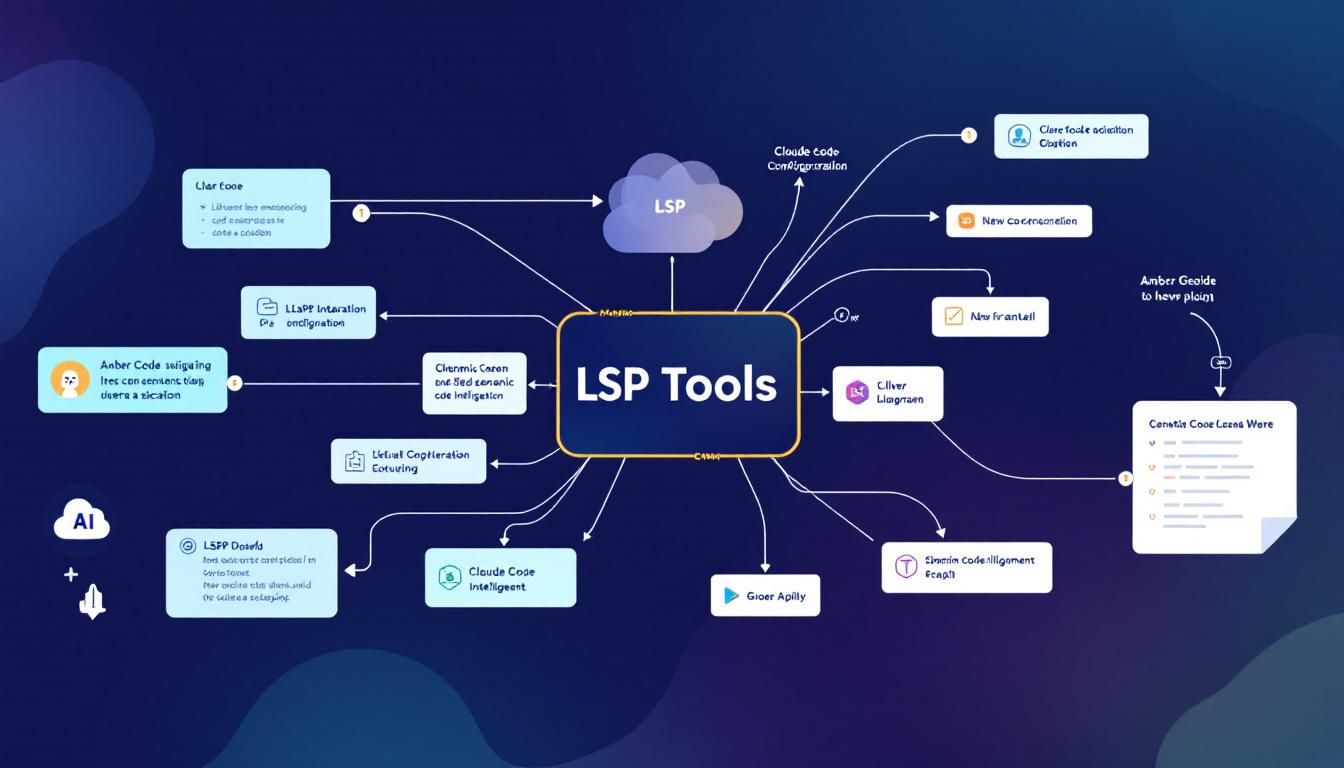
Why LSP Tools Is the Missing Piece in Claude Code's Development Stack
Claude Code's grep-based code navigation is like using a hammer when you need a scalpel. The new LSP Tools plugin transforms Claude from a helpful assistant that sometimes misses things into a pair programmer with IDE-level semantic understanding.
LSP integrationClaude Code configurationsemantic code intelligenceAI-assisted developmentautomated refactoringClaude Codelsp-tools plugin
If you've ever watched Claude Code grep through a massive codebase searching for function references, you've felt the frustration. Hundreds of matches flood your terminal—comments, string literals, similarly-named variables—while the actual function calls you need are buried somewhere in that digital haystack.
It's the difference between shouting a name across a crowded stadium and having someone's exact address.
Why This Matters for AI-Assisted Development
Claude Code is remarkably capable, but it suffers from the same fundamental constraint as any developer: you need to understand code before you can modify it effectively. The problem is that without proper semantic understanding, that comprehension comes from reading massive amounts of potentially irrelevant context.
Consider a seemingly simple refactoring task: "rename the processOrder function to handleOrder." Without Language Server Protocol (LSP) integration, Claude's workflow looks like this:
- Grep for all occurrences of
processOrder - Read each file to determine if it's a legitimate reference
- Filter out false positives (comments, strings, other functions with similar names)
- Make changes and hope nothing was missed
With LSP, that workflow becomes surgical:
findReferencesonprocessOrder—exact usages only- Make changes with complete confidence
The token savings alone are significant. In a 100-file project, grep-based reference finding might burn through 2000+ tokens scanning noisy output. LSP returns precise matches in roughly 500 tokens.
LSP transforms Claude from a helpful assistant that sometimes misses things into a pair programmer with IDE-level understanding.
What LSP Actually Brings to the Table
Language Server Protocol is the standardized interface that powers the "go to definition," "find references," and hover documentation features in modern IDEs like VS Code, IntelliJ, and Vim. Instead of crude text matching, LSP provides true semantic understanding of your codebase.
Here's what LSP operations actually do:
goToDefinition: Jump directly to where a symbol is defined, not just where the text appearsfindReferences: Find every actual usage of a symbol, ignoring comments and string literalshover: Get type signatures, documentation, and context inlineincomingCalls: Trace exactly which functions call a specific functionoutgoingCalls: Trace what functions a specific function calls
The difference is night and day. A grep search for getUserById in a moderately-sized project might return 500+ matches—comments, strings, similar function names, type definitions. LSP's findReferences returns the 23 actual call sites.
More importantly, LSP understands scope. A local variable named config in one function is semantically distinct from a module-level config elsewhere. Grep can't possibly know that context.
Enter LSP Tools: Enforcement, Not Just Enablement
The lsp-tools plugin doesn't just make LSP available in Claude Code—it enforces LSP-first patterns that prevent the common mistakes that plague grep-based development. While LSP has been available in Claude Code for a while, using it consistently required manual discipline. This plugin changes that equation entirely.
The Three Iron Laws
The plugin establishes three mandatory behavioral constraints:
1. NO MODIFYING UNFAMILIAR CODE WITHOUT goToDefinition FIRST
2. NO REFACTORING WITHOUT findReferences IMPACT ANALYSIS FIRST
3. NO CLAIMING CODE WORKS WITHOUT LSP DIAGNOSTICS VERIFICATION
These aren't suggestions—they're enforced patterns. The plugin activates when it detects trigger phrases like "find definition," "before I refactor," or "what calls this function," and these behavioral patterns become hardwired into Claude's approach.
The pre-edit protocol requires understanding before modification:
- NAVIGATE:
goToDefinitionto understand the implementation - ANALYZE:
findReferencesto assess the blast radius of changes - INSPECT:
hoverto verify type signatures and contracts - THEN: Make changes with confidence
This mirrors what experienced developers do instinctively—and prevents the "quick refactor" that inevitably misses half the call sites.
The plugin makes LSP the default rather than an option you have to remember to use.
Real-Time Quality Gates Through Hooks
Beyond semantic navigation, lsp-tools provides automated quality checks during development. When you run /lsp-setup, it installs language-appropriate hooks to your project's .claude/hooks.json.
For TypeScript projects, you automatically get:
{
  "hooks": [
    {
      "name": "format-on-edit",
      "event": "PostToolUse",
      "matcher": "Write|Edit",
      "command": "npx prettier --write $CLAUDE_FILE_PATHS"
    },
    {
      "name": "typecheck-on-edit",
      "event": "PostToolUse",
      "matcher": "Write|Edit",
      "command": "npx tsc --noEmit"
    },
    {
      "name": "pre-commit-quality-gate",
      "event": "PreToolUse",
      "matcher": "Bash",
      "command": "if echo \"$CLAUDE_TOOL_INPUT\" | grep -qE 'git commit'; then npx tsc --noEmit && npx eslint .; fi",
      "blocking": true
    }
  ]
}
Every file edit triggers automatic formatting and type checking. Git commits are blocked if the codebase has type errors or lint failures. Problems get caught when they're introduced, not discovered three commits later.
Setting Up LSP Tools: A Step-by-Step Walkthrough
Getting lsp-tools running is straightforward, but there are a few gotchas worth knowing about upfront.
Step 1: Enable LSP in Claude Code
You have two approaches for enabling LSP support:
Option A: Environment Variable
Add this to your shell profile (~/.bashrc, ~/.zshrc, or ~/.config/fish/config.fish):
export ENABLE_LSP_TOOL=1
Then reload your configuration:
source ~/.bashrc # or ~/.zshrc
Option B: Settings File (Recommended)
For global configuration, add to ~/.claude/settings.json:
{
  "env": {
    "ENABLE_LSP_TOOL": "1"
  }
}
For project-specific configuration, add to <project>/.claude/settings.json:
{
  "env": {
    "ENABLE_LSP_TOOL": "1"
  }
}
The settings file approach is cleaner for teams—commit the project-level settings and everyone gets LSP automatically.
Step 2: Install Required Language Servers
The plugin supports 12 languages out of the box. Install the language servers you need:
# TypeScript/JavaScript
npm install -g @vtsls/language-server typescript

# Python
npm install -g pyright

# Go
go install golang.org/x/tools/gopls@latest

# Rust
rustup component add rust-analyzer

# Java
# Download and configure Eclipse JDT Language Server

# C/C++
# Install clangd via your system package manager
Step 3: Install the Plugin
# Add the marketplace if you haven't already
claude /plugin marketplace add https://github.com/zircote/marketplace

# Install lsp-tools
claude /plugin install lsp-tools
Step 4: Run Setup in Your Project
cd /path/to/your/project
/lsp-tools:lsp-setup
The setup command auto-detects your project's languages, installs appropriate hooks, and optionally adds LSP guidance to your CLAUDE.md file.
You can also specify languages explicitly:
/lsp-tools:lsp-setup typescript python go
Step 5: Restart Claude Code
LSP requires a fresh session to initialize properly. Restart Claude Code after completing setup.
Important: There's currently a bug in the latest Claude Code release affecting LSP initialization. Use version 2.0.67 for stable LSP support:
npm install -g @anthropic-ai/claude-code@2.0.67
The Decision Matrix: When to Use What
One of the plugin's most valuable features is clear guidance on tool selection. Not everything should use LSP—the key is knowing when semantic understanding matters versus when you need literal text matching.
| What You Need | Use This Tool | Why |
|---|---|---|
| Where is this function defined? | LSP: goToDefinition |
Semantic precision |
| Who calls this function? | LSP: findReferences |
True usage, not text matches |
| What type does this return? | LSP: hover |
Type system integration |
| Find TODO/FIXME comments | Grep | Literal text search |
| Search configuration values | Grep | String matching |
| Find files matching patterns | Glob | File system operations |
LSP is for semantic operations—understanding code structure, types, relationships, and contracts. Grep remains perfect for literal text searches. The plugin helps Claude choose correctly every time.
LSP-Aware Agents in Action
If you're using the zircote plugin, you'll find that 25+ specialist agents are already LSP-aware. Language specialists like typescript-pro, python-pro, and rust-engineer automatically leverage semantic navigation when LSP is enabled.
These agents have LSP declared in their tools, meaning they'll instinctively use goToDefinition, findReferences, and hover operations. Combined with lsp-tools' behavioral enforcement, you get agents that navigate codebases with surgical precision.
To leverage this combination:
claude /plugin install lsp-tools
claude /plugin install zircote
Then watch agents like golang-pro navigate your codebase like they've been working on it for years.
The Bottom Line
If you're using Claude Code for serious development work, LSP Tools transforms the experience from "helpful assistant that sometimes misses edge cases" to "pair programmer with IDE-level semantic understanding." The benefits compound over time: fewer false positives in searches, more accurate refactoring that doesn't miss call sites, better context understanding with lower token consumption, and automatic quality gates that catch problems when they're introduced rather than when they break production. The plugin makes LSP-first development the default path of least resistance, and Claude develops better habits as a result—it's a small change in tooling that produces a meaningful improvement in reliability and developer confidence.
Try This Now
- 1Install Claude Code v2.0.67 for stable LSP support: `npm install -g @anthropic-ai/claude-code@2.0.67`
- 2Enable LSP in your Claude settings: Add `"ENABLE_LSP_TOOL": "1"` to `~/.claude/settings.json`
- 3Install language servers for your stack: `npm install -g @vtsls/language-server pyright` for TypeScript/Python
- 4Install the lsp-tools plugin: `claude /plugin install lsp-tools` after adding the zircote marketplace
- 5Run `/lsp-tools:lsp-setup` in your project directory to auto-configure hooks and LSP guidance
How many Orkos does this deserve?
Rate this tutorial