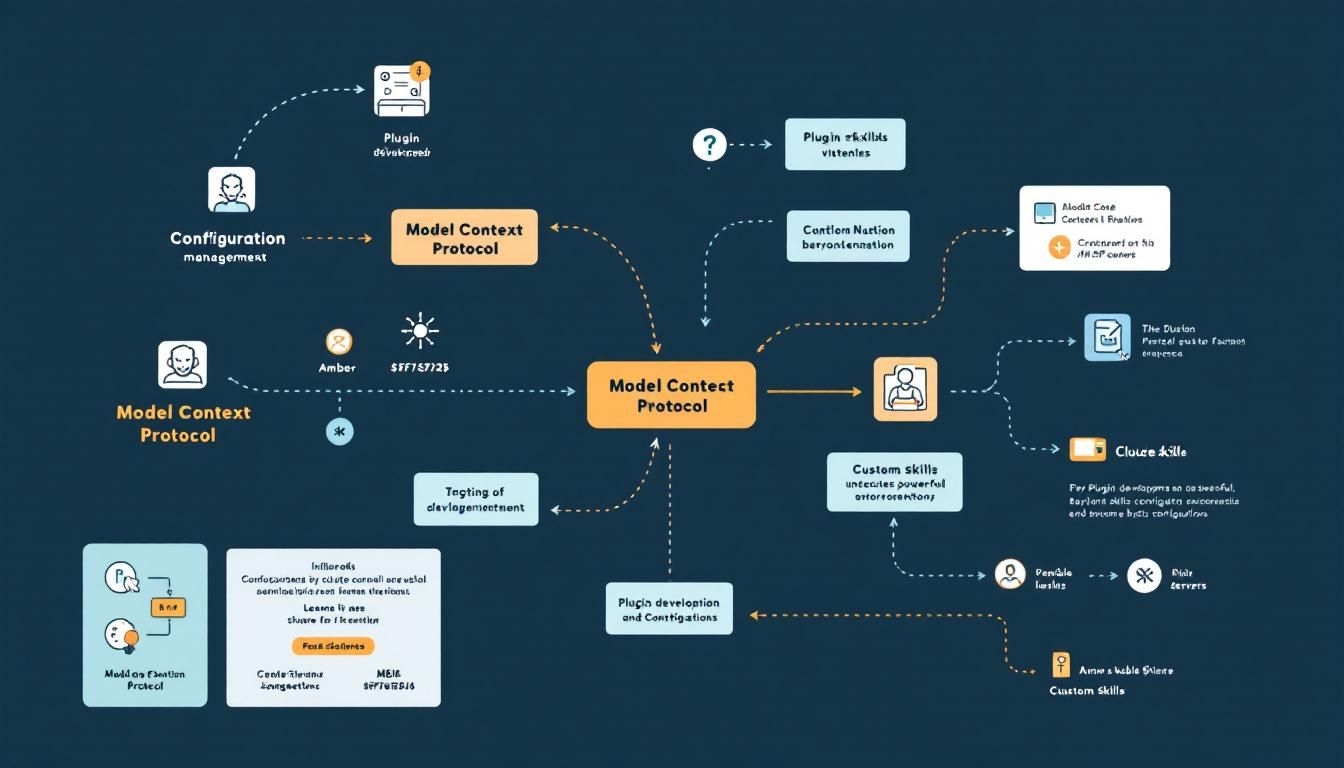
Building Custom Claude Code Plugins: From Skills to MCP Servers
Plugin development in Claude Code unlocks powerful extensibility beyond basic configurations. Learn to create shareable plugins with custom skills, agents, and MCP servers that your team can install across projects—complete with proper namespacing and version control.
plugin developmentcustom skillsconfiguration managementModel Context ProtocolClaude Code
Your Claude Code setup works fine for personal projects, but what happens when you want to share that brilliant custom skill with your team? Or when you need the same agent behavior across multiple codebases?
That's where Claude Code plugins come in—the difference between scattered configuration files and professional, shareable extensions.
Why Plugins Matter More Than You Think
Most developers start with standalone configuration in their .claude/ directory. It's quick, it works, and skills get clean names like /hello or /review. But this approach hits walls fast:
- Your teammate can't use your custom
/code-reviewskill without copy-pasting files - You rebuild the same agents in every new project
- No version control means breaking changes propagate instantly
- Skill name conflicts become inevitable as teams grow
Plugins solve these problems by packaging your extensions into distributable, versioned bundles. Yes, you get namespaced skill names like /my-plugin:hello instead of just /hello, but that's the price of professional tooling.
The choice isn't really between plugins and standalone config—it's between personal scripts and professional tools that scale with your team.
When to Choose Plugins vs Standalone Configuration
The decision matrix is clearer than most documentation suggests:
Use standalone configuration (.claude/ directory) when:
- Experimenting with new skills before committing to them
- Building project-specific customizations that won't be reused
- Working solo and prioritizing speed over shareability
- You want clean skill names like
/deployor/test
Use plugins when:
- Multiple team members need the same functionality
- You're building reusable tools across projects
- Version control and rollback capability matter
- You plan to distribute through a marketplace
- Professional polish trumps development speed
Start standalone, migrate to plugins when you hit sharing friction. The conversion process is straightforward once you understand the structure.
Building Your First Plugin: The Complete Walkthrough
Let's build a plugin that demonstrates the core concepts without getting lost in complexity.
Setting Up the Plugin Structure
Every plugin needs a specific directory structure. The plugin manifest lives in .claude-plugin/plugin.json, while everything else goes at the plugin root:
mkdir my-first-plugin
mkdir my-first-plugin/.claude-plugin
Create your plugin manifest at my-first-plugin/.claude-plugin/plugin.json:
{
  "name": "my-first-plugin",
  "description": "A greeting plugin to learn the basics",
  "version": "1.0.0",
  "author": {
    "name": "Your Name"
  }
}
The name field becomes your namespace prefix—skills in this plugin will be called /my-first-plugin:skillname. Choose wisely, because changing it breaks existing users.
Adding Your First Skill
Skills are the most common plugin component. Each skill lives in its own folder under skills/ with a SKILL.md file:
mkdir -p my-first-plugin/skills/hello
Create my-first-plugin/skills/hello/SKILL.md:
---
description: Greet the user with a personalized message
disable-model-invocation: true
---

# Hello Skill

Greet the user named "$ARGUMENTS" warmly and ask how you can help them today. Make the greeting personal and encouraging.
The frontmatter (YAML between --- lines) configures skill behavior:
description: Shows up in help text and plugin browsersdisable-model-invocation: Prevents Claude from calling external APIs for this simple skill$ARGUMENTS: Captures everything after the skill name
Testing with Plugin Directory Loading
The --plugin-dir flag lets you test plugins without installing them:
claude --plugin-dir ./my-first-plugin
Once Claude Code starts, try your namespaced skill:
/my-first-plugin:hello Alex
Claude should greet you by name. Run /help to see your skill listed under the plugin namespace section.
Plugin development follows a tight feedback loop: edit the skill file, restart Claude Code with
--plugin-dir, test the change, repeat.
Advanced Plugin Architecture
Once you master basic skills, plugins unlock much more sophisticated functionality.
Adding Custom Agents
Plugins can package custom agents alongside skills. Create an agents/ directory and define specialized AI assistants:
mkdir my-first-plugin/agents
Agents get their own configuration files and can have plugin-specific skills that only work within that agent context.
Integrating MCP Servers
Model Context Protocol (MCP) servers give Claude access to external systems—databases, APIs, file systems. When packaged in plugins, MCP servers become shareable infrastructure:
{
  "name": "database-plugin",
  "mcp": {
    "servers": {
      "postgres": {
        "command": "mcp-server-postgres",
        "args": ["--connection-string", "${DATABASE_URL}"]
      }
    }
  }
}
This plugin would give Claude SQL querying capabilities in any project where it's installed.
Plugin Hooks and Automation
The hooks/ directory lets plugins respond to Claude Code events:
- File changes in the workspace
- Before/after skill execution
- Project initialization
- Git commits
Hooks turn plugins into active development tools, not just collections of skills.
Local Testing and Debugging
Development plugins need robust testing workflows:
- Use
--plugin-dirfor rapid iteration without installation - Check logs with
claude --debugto see plugin loading errors - Validate manifests before distribution—malformed JSON breaks plugin loading
- Test skill arguments with various input patterns
- Verify namespacing works correctly with multiple plugins loaded
From Development to Distribution
Converting Standalone Configurations
Already have skills in .claude/? The migration path is mechanical:
- Create plugin structure:
mkdir my-plugin && mkdir my-plugin/.claude-plugin - Move directories: Copy
skills/,agents/,hooks/from.claude/to plugin root - Create manifest: Add
plugin.jsonwith proper metadata - Update skill calls: Change
/skillnameto/plugin-name:skillnamein your workflows - Test thoroughly: Use
--plugin-dirto verify everything works
The functionality remains identical—you're just adding professional packaging.
Sharing and Version Management
Once your plugin works locally:
- Version semantically: Use
1.0.0format and bump appropriately for changes - Document thoroughly: README files help adoption
- Test across projects: Verify the plugin works in different codebases
- Consider backwards compatibility: Breaking changes should bump major version
Plugin development is software development—apply the same rigor you'd use for any tool your team depends on.
The Bottom Line
Claude Code plugins transform scattered configuration files into professional, shareable development tools. While standalone configurations work fine for personal experiments, plugins become essential once you need to share functionality across team members or projects. The namespacing trade-off (longer skill names) pays dividends in conflict prevention and professional polish. Start with standalone skills for rapid prototyping, then migrate to plugins when you hit sharing friction—your future self and teammates will thank you for the investment in proper tooling.
Try This Now
- 1Create a plugin directory structure with `.claude-plugin/plugin.json` manifest for your most-used standalone skills
- 2Test your plugin using `claude --plugin-dir ./your-plugin` before sharing with teammates
- 3Convert existing `.claude/` configurations to plugins using proper namespacing and version control
- 4Set up MCP server integration in your plugin manifest to enable external system access
- 5Implement plugin hooks in `hooks/` directory to automate responses to Claude Code events
How many Orkos does this deserve?
Rate this tutorial